


Overnight Vitals Widget On iPhone Lock Screen! (iOS 18)

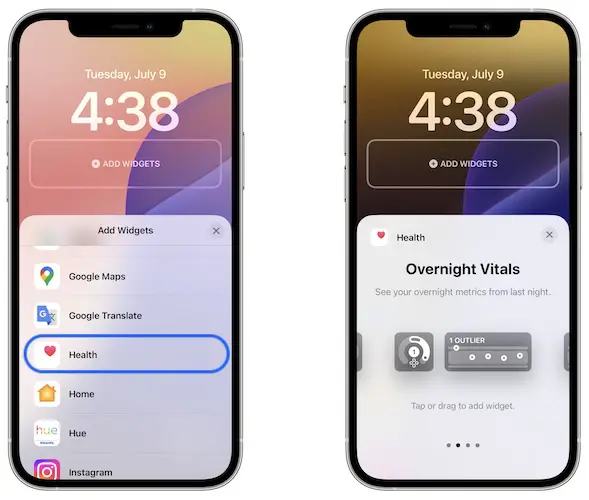
Overnight Vitals widget on iPhone Lock Screen in iOS 18.
The Overnight Vitals widgets in now available on the iPhone Lock Screen! All that you have to do is update your device to iOS 18 and this new Health widget becomes available in the Add New Widget section!
How To Add Overnight Vitals Widget On iPhone Lock Screen
- 1. Wake iPhone and unlock it.
- 2. Tap & hold the Lock Screen until the Edit screen shows up.
- 3. Go for Customize and select Lock Screen.
- 4. Tap Add Widgets.
- 5. Scroll for the Health app.
- 6. Swipe for the Overnight Vitals widget.
- 7. Select the desired Size and tap Done to exit.
Overnight Vitals Widget Not Working?
Is the new Overnight Vitals widget not showing any data after you added it to the iPhone Lock Screen?
Make sure that your Apple Watch is tracking your vitals overnight and that you’re wearing the wrist-gadget during your sleep!
How to: Open the Watch app on the iPhone. In the My Watch tab, scroll for Sleep and make sure that Track Sleep with Apple Watch is turned On!
Do you plan to use Overnight Vitals on iPhone Lock Screen or you prefer to check these metrics on the Apple Watch? Do you encounter any issues or with this feature? Share your feedback in the comments!
Related: Here is how to set the iOS 18 Dynamic Wallpaper!