


iOS 18 Dynamic Wallpaper Changes Color With Time
iOS 18 Dynamic wallpaper
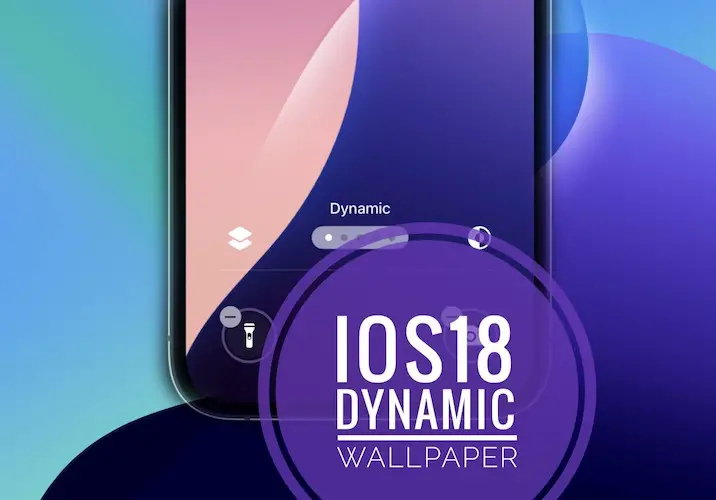
iOS 18 dynamic wallpaper is able to change color as time passes. It’s been introduced in the Developer Beta 3 version and will most likely make it to the public release, expected this autumn.
How To Use The iOS 18 Dynamic Wallpaper
IT’s very easy to set up this new background, as long as you’ve updated your iPhone to iOS 18:
- 1. Wake iPhone and unlock it. (with Face ID or an other authentication option)
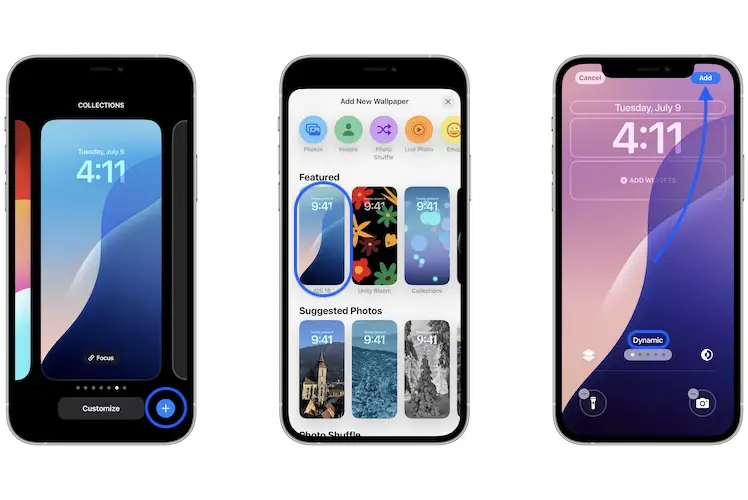
- 2. Tap & hold the Lock Screen, to enter Edit mode.
- 3. Customize your current screen or add a new Lock Screen.
- 4. Scroll to the iOS 18 section, in the Add New Wallpaper screen and tap on the first mockup.
Tip: You should also be able to find the new iOS 18 Dynamic Wallpaper, in the Featured section (first in the list). - 5. Configure your widgets and Lock Screen shortcuts and tap Add when ready.
- 6. Set as Wallpaper Pair or Customize the Home Screen version and you’re ready to go!
iOS 18 Wallpaper Static Color
If you like the stock iOS 18 wallpaper but aren’t a fan of the automatic color changes, you can also opt for the static version of it!
How to: When you select the background from the Add New Wallpaper screen, swipe to check out the different styles available. The default one is Dynamic but you can also pick Yellow, Pink, Azure and Purple!
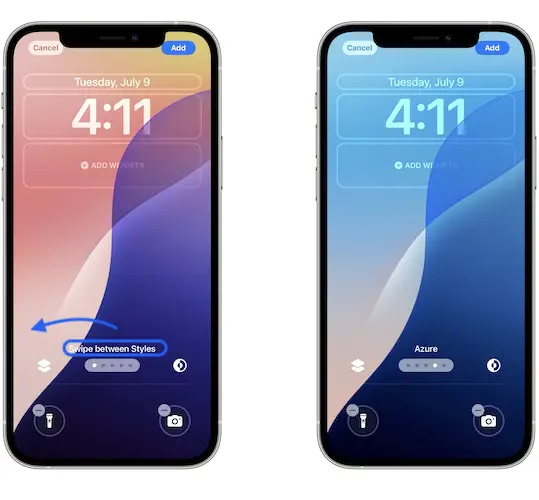
Fact: The Appearance setting also impacts the way colors display on the iOS 18 wallpaper! Tap on the Appearance icon and select Light or Dark if you prefer one of the two versions or keep it on Automatic to allow iOS to automatically switch between day and night!
What do you think about the new iOS 18 dynamic wallpaper? Do you plan to use it? Do you experience any issues or have any suggestions? Share your feedback in the comments!
Related: How to quickly turn off iPhone in iOS 18!