


WatchOS 2 Comes With Activation Lock For Apple Watch
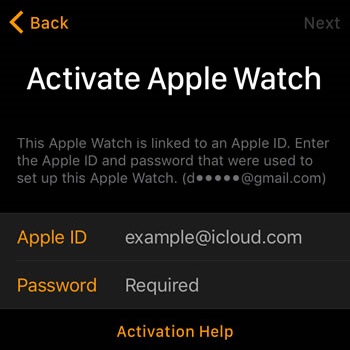
Apple Watch Activation Lock screen.
Activation Lock for iPhone has been optionally introduced in iOS 7 and is a default setting since iOS 8. It surprised many of us when it wasn’t build-in the first watchOS generation. However, it’s better to have it later than never, so now you can bring Activation Lock to your Watch by upgrading to watchOS 2.
How Does Activation Lock Work
 Your Apple Watch has a Passcode that is automatically requested when the device is removed from your wrist, restarted or turned ON. IF someone steals your wearable, or in any other scenario that ends with you losing the wrist-worn gadget, the unwanted user will have to know the passcode to be able to use your device. If the thief tries to bypass your passcode by pairing the Apple Watch with another iPhone, he will be prompted to enter the password, of the Apple ID, that the Apple Watch is currently linked too. Without this security string the wearable, remains locked for activation and can’t be paired ever again, making it virtually unusable!
How To Enable Activation Lock
There are three steps that you have to complete in order to make Activation Lock functional on your Apple Watch:
1. Upgrade To watchOS 2
2. Provide your Apple ID credentials
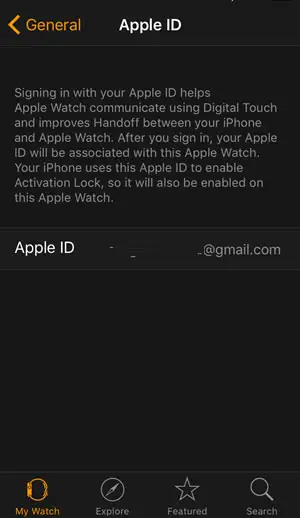
 – Grab your iPhone and open the Apple Watch app.
– Make sure that you’re on the My Watch tab and browse to General -> Apple ID
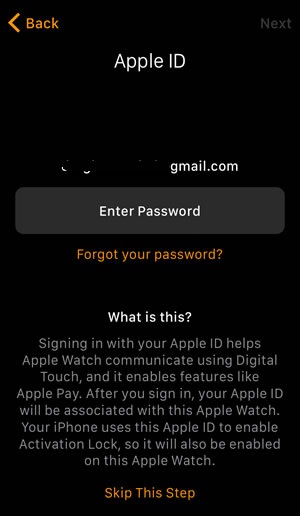
– Sign in with your Apple ID. Besides enabling Activation Lock you’ll also improve the Digital Touch and Hand Off features between your wrist-worn device and its iOS companion.
Fact: If you pair your Watch, while it’s running watchOS 2, you’ll be asked to provide your Apple ID credentials during the syncing process. If you skip this step, you can always sign in via the Apple Watch app, as mentioned above.
3. Find My iPhone Is ON
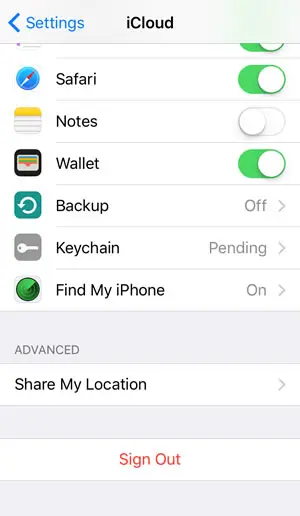 Activation Lock has to be also enabled on the paired iOS gadget. This means that you have to be signed in to your iCloud account on your iPhone. The process automatically activates the Find My iPhone feature.
If you’re unsure about your smartphone’s status open the Settings app and scroll for iCloud. Here you can notice if you’re signed in or not. Your iCloud account should appear at the top of the screen. If you scroll all the way down, you can see that Find My iPhone is enabled and the Sign Out label confirms one more time that you’re logged in. Else, you’re prompted with the iCloud Sign In form.
Tip: If you forget your Apple Id password you can reset it via Recovery Email, Security Questions or Two-Step Verification.
Fact: Do mind that you’ll also need your Apple ID password if you wish to un-pair the Watch in order to sell it or give it away. This is done by opening the Apple Watch app on your iPhone and navigating to My Watch -> Apple Watch -> Unpair Apple Watch. On the other hand, if you lose it, tap on Mark as Missing to block it.